Connect Zoom to AmpUp to automatically capture meeting recordings and participant information. This integration is ideal if you’re not using a dedicated conversation intelligence platform like Gong or Clari Copilot.

Prerequisites

Before connecting Zoom, ensure you have:
Zoom account with cloud recording enabled
Access to the Zoom App Marketplace to create an app
AmpUp admin access for your organization
Zoom Client ID and Client Secret (see Create a Zoom App below)
These credentials are required to establish a secure link between Zoom and AmpUp. Once connected, your data will be encrypted in transit and at rest, and synced periodically to keep AmpUp up to date with your latest recordings.
If you already use Gong or Clari Copilot, you likely don’t need the Zoom integration—your calls are already captured through those platforms.

Create a Zoom App

Before connecting Zoom to AmpUp, you’ll need to create an app in the Zoom Marketplace to obtain your Client ID and Client Secret.
1

Sign in to Zoom Marketplace

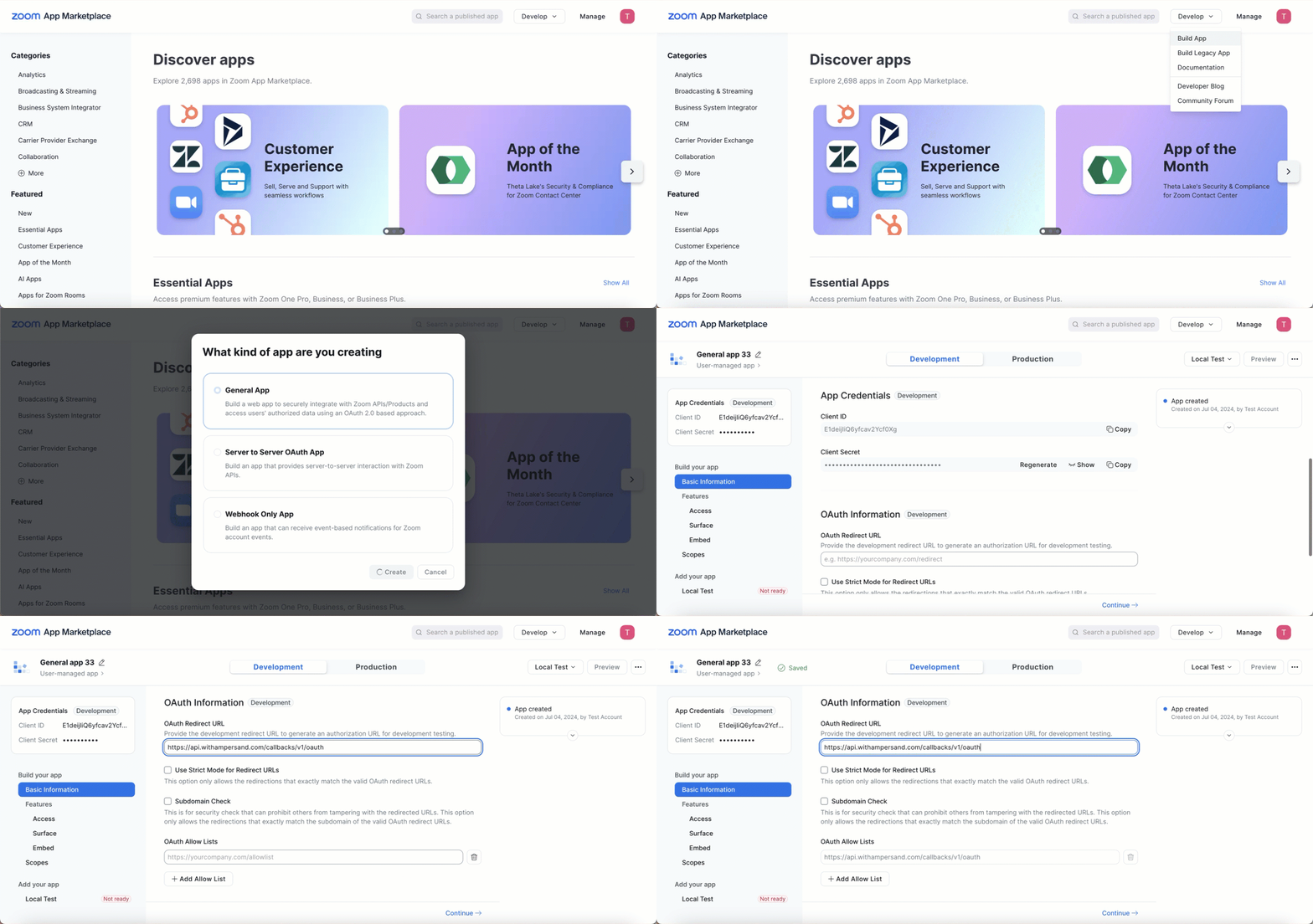
Go to the Zoom App Marketplace and sign in. Click Develop in the top menu, then select Build App.
Creating a General App in Zoom Marketplace
2

Select app type

Choose General App as the app type and click Create.
3

Configure OAuth redirect URI

In the OAuth Information section of your app, add the following Redirect URL:
https://api.withampersand.com/callbacks/v1/oauth
4

Add required scopes

Navigate to the Scopes section and add the following scopes:
meeting:read
recording:read
user:read
Select the scopes that match your use case. At minimum, you need recording read access to import cloud recordings into AmpUp.
5

Copy your credentials

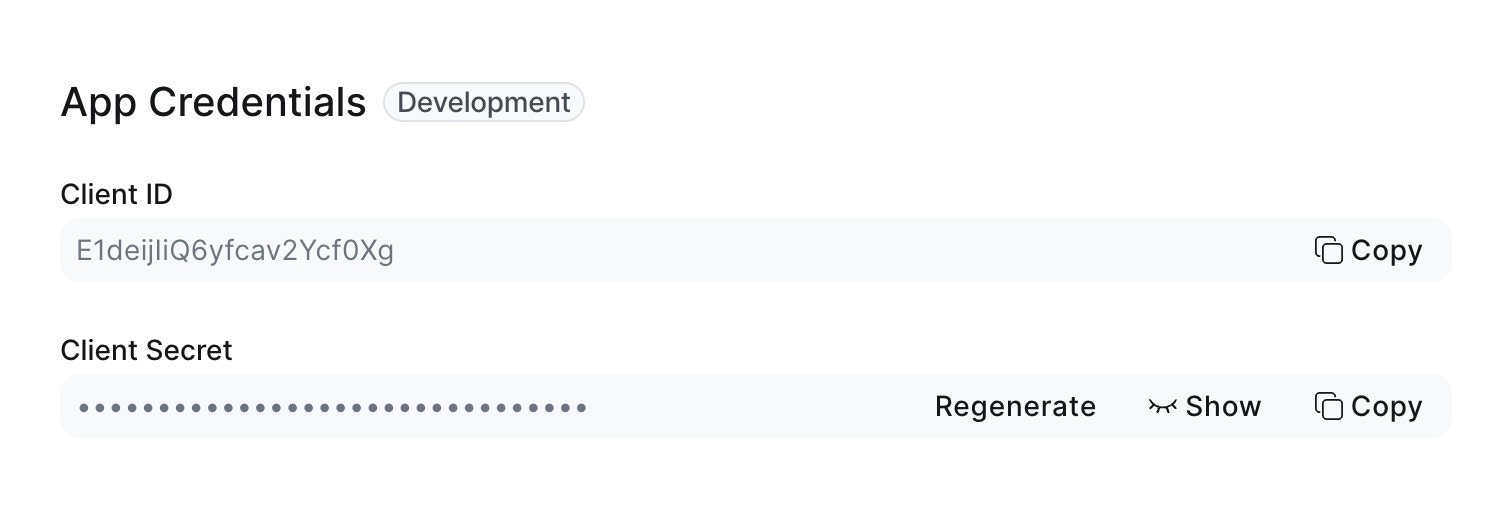
Navigate to the Basic Information section of your app. Copy the Client ID and Client Secret — you’ll need these when connecting Zoom in AmpUp.
Zoom app Client ID and Client Secret

What Data Syncs

From Zoom to AmpUp

Data TypeDescription
Meeting RecordingsCloud recordings (video and audio)
TranscriptsZoom-generated transcripts (if enabled)
Meeting MetadataTitle, duration, date, meeting ID
ParticipantsNames, emails, join/leave times
Chat MessagesIn-meeting chat (optional)
Only cloud recordings are synced. Local recordings on users’ devices are not captured.

Connect Zoom

1

Navigate to Integrations

In AmpUp, go to SettingsIntegrationsZoom.
2

Enter Provider Credentials

Click the Connect Zoom button. AmpUp will prompt you to enter the Client ID and Client Secret from the Zoom app you created above. AmpUp securely stores these credentials and uses them to establish the OAuth connection.
3

Authorize with Zoom

After entering your credentials, you’ll be redirected to Zoom. Sign in with your account and authorize AmpUp to access your recordings.
4

Authorize AmpUp

Review the permissions and click Authorize.AmpUp requests:
  • View and manage meetings
  • View and manage recordings
  • View user information
5

Configure Recording Settings

Select which users and meeting types to capture.
6

Enable Cloud Recording

If not already enabled, turn on cloud recording in Zoom:
  1. Go to Zoom Admin Portal → Account SettingsRecording
  2. Enable Cloud Recording
  3. Optionally enable Audio Transcript

Configuration Options

User Selection

Choose which users’ meetings to capture:
OptionDescription
All UsersCapture meetings from everyone in the org
Selected TeamsOnly specific departments or teams
Selected UsersHand-picked individuals

Meeting Filters

Control which meetings are imported:
FilterDefault
Minimum Duration5 minutes
External ParticipantsRequired (internal-only calls excluded)
Scheduled MeetingsIncluded
Instant MeetingsIncluded
WebinarsExcluded

Recording Preferences

SettingOptions
Video QualityOriginal, compressed, audio only
Transcript SourceZoom transcript, AmpUp transcription, both
RetentionMatch Zoom settings, custom

Zoom Account Requirements

Cloud Recording

Cloud recording must be enabled for the integration to work:
  1. Account Level: Enable in Zoom Admin → Account Settings → Recording
  2. User Level: Users can have different settings if allowed
  3. Meeting Level: Host can override per meeting
For best results with AmpUp:
Cloud Recording: ON
Automatic Recording: Cloud (recommended)
Audio Transcript: ON
Save Chat Messages: ON (optional)
Recording Notifications: ON (for compliance)

Sync Status & Troubleshooting

Check Sync Status

View status at SettingsIntegrationsZoomStatus.
StatusMeaning
ConnectedIntegration active
🔄 ProcessingRecordings being imported
⚠️ PartialSome recordings not captured
ErrorConnection issue

Common Issues

  • Verify cloud recording is enabled (not local recording)
  • Check that the meeting met minimum duration requirements
  • Allow up to 1 hour for Zoom to process the recording
  • Confirm the host user is included in sync settings
  • Enable “Audio Transcript” in Zoom recording settings
  • Transcripts may take additional time after recording is ready
  • Poor audio quality can prevent transcript generation
  • Verify all intended users are included in your sync settings
  • Check individual user recording settings in Zoom Admin
  • Users on free Zoom plans may not have cloud recording
Zoom OAuth tokens can expire. Click Reconnect in your AmpUp settings to reauthorize.

Privacy & Compliance

Ensure you comply with recording consent laws in your jurisdiction. Most regions require informing participants that a meeting is being recorded.
Zoom provides built-in consent features:
  • Recording notifications when recording starts
  • Consent prompts for participants
  • Disclaimer settings in account preferences

Data Handling

AspectDetails
StorageRecordings stored in AmpUp’s secure cloud
EncryptionAES-256 at rest, TLS 1.3 in transit
RetentionConfigurable, can match Zoom settings
Access ControlRole-based, audit logged

Disconnect Zoom

To remove the integration:
  1. Go to SettingsIntegrationsZoom
  2. Click Disconnect
  3. Confirm disconnection
To also revoke from Zoom side:
  1. Go to Zoom Marketplace → ManageInstalled Apps
  2. Find AmpUp and click Uninstall

FAQ

No. If you use Gong or Clari Copilot, your Zoom meetings are already captured through those integrations. The direct Zoom integration is primarily for teams not using a conversation intelligence platform.
Currently, only Zoom Meetings recordings are supported. Zoom Phone integration is on our roadmap.
Microsoft Teams integration is available — see Microsoft Teams. Google Meet support is on our roadmap.
Breakout room recordings depend on your Zoom settings. If cloud recording is enabled for breakout rooms, they will sync to AmpUp.