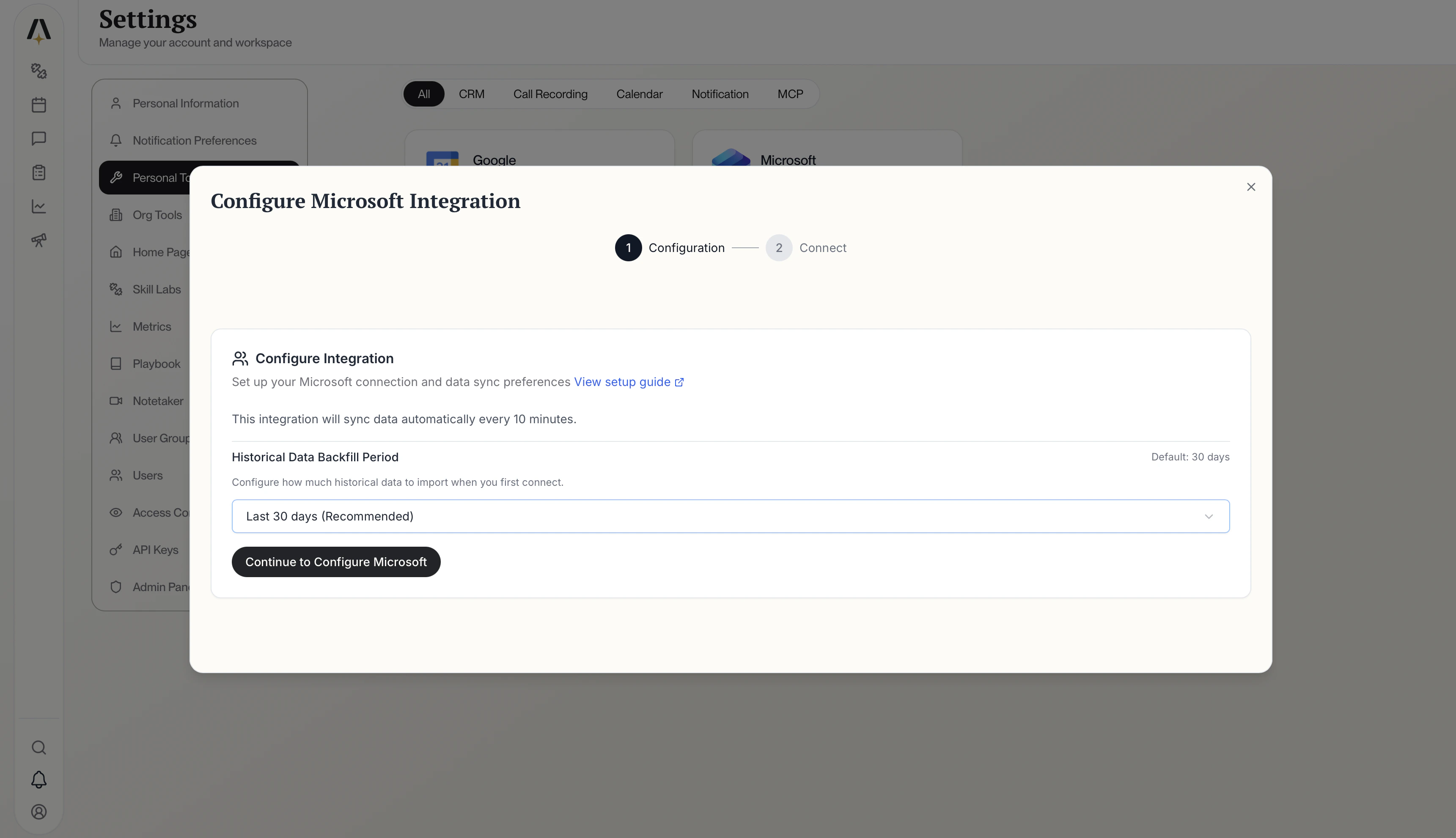
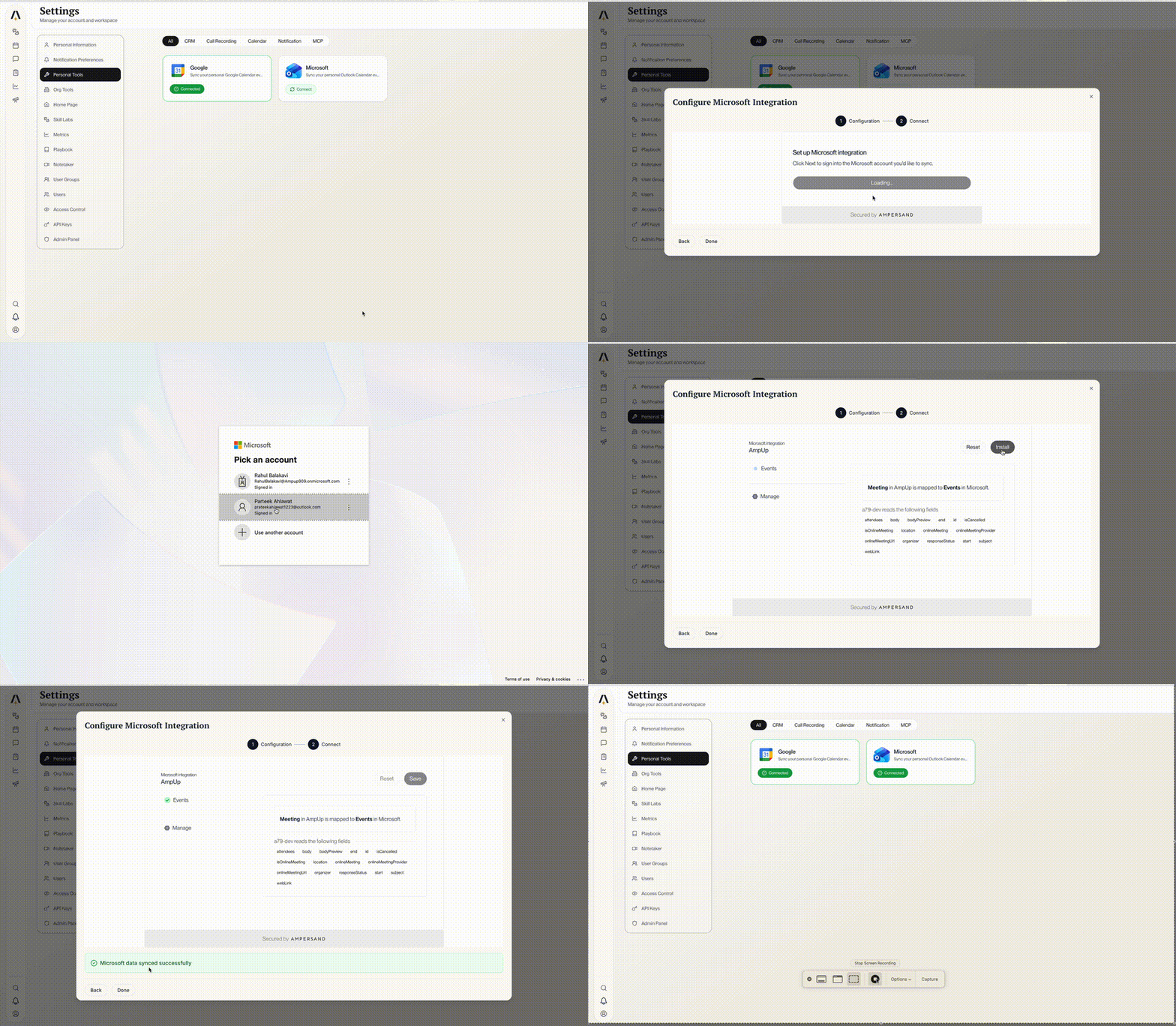
Connect Microsoft Teams to AmpUp to automatically capture meeting recordings, transcripts, and participant information via the Microsoft Graph API. This integration is ideal for organizations using Microsoft 365 for their meetings.

Prerequisites

Before connecting Microsoft Teams, ensure you have:
Microsoft 365 account with Teams meetings enabled
Access to the Azure Portal to register an application
AmpUp admin access for your organization
Azure AD Client ID and Client Secret (see Register an Azure AD App below)
These credentials are required to establish a secure link between Microsoft Teams and AmpUp. Once connected, your data will be encrypted in transit and at rest, and synced periodically to keep AmpUp up to date with your latest meetings.

Register an Azure AD App

Before connecting Microsoft Teams to AmpUp, you’ll need to register an application in Azure Active Directory to obtain your Client ID and Client Secret.
1

Sign in to Azure Portal

Go to the Azure Portal and sign in with your Microsoft account.
Azure AD app registration walkthrough
2

Register a new application

Navigate to Azure Active DirectoryApp registrationsNew registration.Fill in the following:
  • Name: A descriptive name (e.g., “AmpUp Integration”)
  • Supported account types: Select the appropriate option for your organization
  • Redirect URI: Select Web and enter:
https://api.withampersand.com/callbacks/v1/oauth
Click Register.
3

Create a Client Secret

In your newly registered app, go to Certificates & secretsNew client secret.
  • Add a description (e.g., “AmpUp”)
  • Select an expiration period
Click Add and immediately copy the Value — this is your Client Secret. It won’t be shown again.
Copy the Client Secret immediately after creation. You will not be able to view it again later.
4

Configure API permissions

Go to API permissionsAdd a permissionMicrosoft GraphDelegated permissions.Add the following permissions:
offline_access
OnlineMeetingTranscript.Read.All
OnlineMeetingRecording.Read.All
OnlineMeeting.Read
User.Read
Calendars.Read
The offline_access scope is mandatory. Without it, AmpUp will not receive refresh tokens and users will need to re-authenticate frequently.
Depending on your organization’s policies, an Azure AD administrator may need to grant admin consent for these permissions.
5

Copy your credentials

Go to the Overview page of your app registration. Copy the Application (client) ID — this is your Client ID.You should now have:
  • Client ID (Application ID from the Overview page)
  • Client Secret (from Certificates & secrets)

What Data Syncs

From Microsoft Teams to AmpUp

Data TypeDescription
Meeting RecordingsCloud recordings from Teams meetings
TranscriptsFull conversation transcripts with speaker identification
Meeting MetadataTitle, duration, date, meeting ID
ParticipantsAttendee names, emails, and roles
Calendar EventsAssociated calendar event details
Users can only access transcripts and recordings for meetings they participated in. AmpUp respects Microsoft’s permission model.

Connect Microsoft Teams

1

Navigate to Integrations

In AmpUp, go to SettingsIntegrationsMicrosoft Teams.
2

Enter Provider Credentials

Click the Connect Microsoft Teams button. AmpUp will prompt you to enter the Client ID (Application ID) and Client Secret from the Azure AD app you registered above. AmpUp securely stores these credentials and uses them to establish the OAuth connection.
3

Authorize with Microsoft

After entering your credentials, you’ll be redirected to Microsoft’s login page. Sign in with your Microsoft 365 account and review the requested permissions.
4

Authorize AmpUp

Review the permissions and click Accept.AmpUp requests:
  • Read meeting transcripts and recordings
  • Read calendar events
  • Read user profile
  • Maintain connection (offline access)
5

Configure Sync Settings

Select which users and meeting types to capture.
6

Initial Import

AmpUp will begin importing your Teams meeting data. This typically takes 2-6 hours depending on meeting volume.

Configuration Options

User Selection

Choose which users’ meetings to capture:
OptionDescription
All UsersCapture meetings from everyone authorized
Selected TeamsOnly specific departments or teams
Selected UsersHand-picked individuals

Meeting Filters

Control which meetings are imported:
FilterDefault
Minimum Duration5 minutes
External ParticipantsRequired (internal-only calls excluded)
Scheduled MeetingsIncluded
Channel MeetingsIncluded
Ad-hoc MeetingsIncluded

Transcription Settings

SettingOptions
Transcript SourceTeams transcript, AmpUp transcription, both
LanguageAuto-detect (default), or specify

Organization Policies

Some organizations restrict user consent for third-party apps. If users see a “Need admin approval” message:
  1. An Azure AD administrator must grant admin consent for the app
  2. Go to Azure Portal → Enterprise Applications → find the app → PermissionsGrant admin consent
If your organization has strict app consent policies, coordinate with your IT administrator before setting up this integration.

Recording & Transcription Policies

Ensure the following Teams policies are enabled:
Meeting Recording: Allowed
Transcription: Allowed
Allow cloud recording: On
Allow transcription: On
These can be configured in the Teams Admin CenterMeeting policies.

Sync Status & Troubleshooting

Check Sync Status

View status at SettingsIntegrationsMicrosoft TeamsStatus.
StatusMeaning
ConnectedIntegration active
🔄 ProcessingRecordings being imported
⚠️ PartialSome recordings not captured
ErrorConnection issue

Common Issues

Your organization’s Azure AD tenant restricts user consent. Ask your IT administrator to grant admin consent for the app, or configure the tenant to allow user consent for verified apps.
  • Verify that meeting recording is enabled in Teams policies
  • Check that the meeting was recorded to the cloud (not locally)
  • Allow up to 2 hours for Microsoft to process the recording
  • Confirm the user is included in sync settings
  • Ensure transcription is enabled in Teams meeting policies
  • Transcripts are only available after the meeting ends
  • Check that the meeting language is supported by Teams transcription
If the Client Secret expires, you’ll need to create a new one in Azure Portal and update it in AmpUp. Consider setting a longer expiration period.
Microsoft Graph API restricts access to meetings where the authenticated user is a participant. Each user must individually authorize AmpUp to access their meeting data.

Privacy & Compliance

Data Handling

AspectDetails
StorageRecordings stored in AmpUp’s secure cloud
EncryptionAES-256 at rest, TLS 1.3 in transit
RetentionConfigurable per organization
Access ControlRole-based, audit logged
ComplianceSOC 2 Type 2 certified
Ensure you comply with recording consent laws. Teams provides built-in recording notifications, but verify your organization’s compliance policies.

Disconnect Microsoft Teams

To remove the integration:
  1. Go to SettingsIntegrationsMicrosoft Teams
  2. Click Disconnect
  3. Confirm disconnection
To also revoke from Microsoft side:
  1. Go to My Apps or Azure Portal → Enterprise Applications
  2. Find the AmpUp app and revoke access
Disconnecting stops new meetings from syncing. Previously imported data remains in AmpUp unless you request deletion.

FAQ

No. If you use Gong or another conversation intelligence platform that records your Teams meetings, your calls are already captured. The direct Teams integration is for teams not using a separate recording platform.
Currently, only Teams Meetings recordings are supported. Teams Phone (PSTN call) integration is on our roadmap.
Yes, if your organization uses both platforms. AmpUp will deduplicate based on meeting time and participants.
Any Microsoft 365 plan that includes Teams and cloud recording. Business Basic, Business Standard, E3, and E5 plans are all supported.
It depends on your setup. With delegated permissions, each user authorizes access to their own meetings. With admin consent, a single admin can authorize for the organization, but individual users may still need to log in.